TechKnowTalkies

Search This Blog

Wednesday, July 24, 2019

How To Download WhatsApp Status for Free(Photos, Videos, GIFs) | 2021

Please consider taking permission from the corresponding contacts before saving the photos, videos, GIFs from the statuses.

Photo : WhatsApp illustration

Have you ever liked a video or GIF in somebody's WhatsApp status and wanted to share those with your friends? But then you have to ask that contact to send the Video or GIFs you liked. Those days are over. Now we will share a trick that will show you how to download or save any videos, GIFs, or photos from your contacts' statuses.

What all you have to do is to download a File Manager. You may download any kind of File Manager application. But here we are going to demonstrate it with Google File Manager. You can download it from the Google Play store. The application comes with the name "Files by Google: Clean up space in your phone" by Google LLC. 

For the Google Pixel smartphone, the application comes by default.

Steps:
  1. Open Google Files >> click on the hamburger icon(three small lines) present on the top-left >> then hit Settings.
  2. For Pixel smartphone, open the Files app >> hit the three-dots icon on the top-right >> click on Settings.
  3. On the next screen, toggle and enable Show hidden files. For Pixel users, do enable Show internal storage.
  4. Now close the App and relaunch it. The Files app's main page scroll down slightly, find the Internal Storage option and hit it.
  5. You will get to see so many folders. Go to WhatsApp folder >> Media >> ‘.Statuses'.
  6. You can now see a thumbnail of all the videos, photos, or GIFs present on your WhatsApp statuses.
  7. To save any photo or a video or GIF, long-press on it(Multiple media can be selected by tapping each of them).
  8. Copy option will be popped up. Or else click three dots appearing on the top right corner and select Copy to.
  9. Now you can paste the media file anywhere you want to inside the phone's internal storage.
For reference, see here step by step.


Tuesday, July 23, 2019

Create a Bootable USB for Windows 10 in a Minute

A bootable USB is required when you want to install an operating system. It is basically the installer file of the operating system mounted on a USB drive, which launches when the system is booted. Many of us must have faced the problem of not having a bootable operating system CD/USB when we need one. But don't worry, now you can create one yourself. Just follow the instructions given below.

Note: You must have the ISO file of the operating system.

Step 1:

You need to download an application called "Universal USB Installer." Here's the link. Just download the application. You don't need to install it.

Step 2: 

You need an empty USB drive. To make a USB drive empty, format the drive. It will clear all its contents. Format with FAT32 or NTFS file system. It will not work on other file systems. If you are not sure how to Format with FAT32 or NTFS, please go through this article, Which USB File System to Select: NTFS, FAT, FAT32, and exFAT | 2021.

Step 3:

Insert the empty USB drive and launch Universal USB Installer application. Agree to the license agreement. The following window appears.

Universal USB installer


Step 4:

Open the drop-down menu and select the distribution you want to install.

Dropdown Menu for Universal USB installer

Step 5:

Click on browse and select the ISO file of the operating system.

Step 6:

Select the USB drive on which you want to mount the ISO file to create bootable USB. Click on “Create.” You will get the following prompt. 

Warning Prompt

Click on “Yes.” The process of creating a bootable USB will start. Once the process ends, click on “Finish.” Voila! Your bootable USB is ready to use.

Friday, July 19, 2019

Easiest way to Download YouTube Videos | 2021

YouTube Video Download

Okay. Now, if you are fed up with searching for applications or software to download YouTube videos and could not find anything best, you have come to the right place. Today we will show you the easiest way to download all the videos (or audio) available on YouTube.com. Yes, from this video streaming website, you can download most of the videos available there. Without much beating around the bush, let us straightly come to the point.
  1. Open YouTube.com to any browser (Preferably Chrome or Firefox for a better experience).
  2. Play any video content you want to Download.
  3. Let’s say you opened this Tom and Jerry video: https://www.youtube.com/watch?v=IC7kXsnYCWk.
  4. Once the video started playing, go to the URL bar and add ‘ss’(Without inverted commas) just before the word ‘youtube.com’                                                                       Example: https://www.ssyoutube.com/watch?v=IC7kXsnYCWk.
  5. Hit Enter and the page will be redirected to another website named en.savefrom.net (A very safe website to visit).
  6. Wait for a few seconds, and the page will show you the different formats and sizes available to be downloaded.
savefrom.net
Tips: You can directly open en.savefrom.net and paste(in the Just insert a link box) any YouTube link you want to download.

Friday, July 12, 2019

Shoelace: Google is Now Planning to Launch its Own 'Facebook' | 2021

After the failure of Google+, Area 120, Google’s in-house incubator, has developed another social networking app named ‘Shoelace.’
Shoelace

This app aims to connect people in the real world with similar interests through local events and activities. To use it, you have to list your interests in the app. It will then recommend to you some hand-picked activities called ‘Loops’ around you to choose from. You can also create your own events and invite others to join them.


Shoelace interface

Currently, the app is available only in New York City and is operating on an invite-only basis. You need an active google account to sign in to the app. Shoelace currently supports Android devices (v8.0 or newer) and iOS (v11.0) or newer.

Shoelace sample photo 2

image source: google.com

Thursday, July 11, 2019

Periscope Camera: Zoom into the Future | 2021

Zoom is a feature that people often use in smartphone cameras, but pictures get blurred and grainy. Smartphones being so slim, getting optical zoom higher than 2X was almost impossible. Well, at least it was so until now!

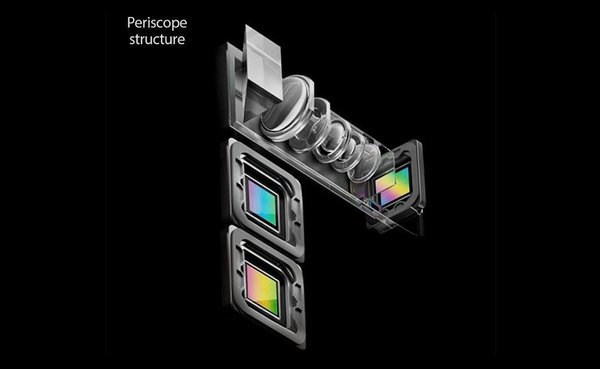
It has been possible to achieve optical zoom higher than 2X by a technology which is known as ‘Periscope Camera.’ Let us see how this camera works to provide higher zooming without compromising the image quality.

The basic structure of a periscope camera consists of a mirror in a prism, a lens, and an image sensor. The light is allowed into the prism, which bends the morning to 90 degrees. This light then passes through the lens to provide the necessary zoom and is then sensed by the image sensor to send signals to the smartphone. This arrangement allows the image sensor and the lenses to sit inside the phone instead of popping out, which would look very awkward. Also, the periscope camera sensor is perpendicular to the phone's back instead of parallel to it like other camera sensors.

Periscope Camera Structure

Recently Huawei has launched a smartphone (Huawei P30 Pro) equipped with a periscope camera that allows up to 5X optical zoom. Another smartphone that comes with this technology is the Oppo Reno which provides 10X optical zoom. Xiaomi is also working on a periscope lens smartphone camera, and it is expected to be delivered in upcoming smartphones. Below are some images which depict the zoom achieved by the periscope camera.

Perisope Camera Photo Sample

Perisope Camera Photo Sample 2Perisope Camera Photo Sample 3

Featured Post

Join in Any 18+ WhatsApp Groups(10000+) in A Single Click | 2021

Welcome to this blog. Here, we love to share with you all the internet-related tips and tricks. If you plan to join different kinds of...